Adjusting font size and brightness can make reading more comfortable, reduce eye strain, and help you read longer. This guide covers Kindle eReaders, the Kindle mobile app, and Amazon Fire tablets.
Why Adjust Font Size and Brightness?
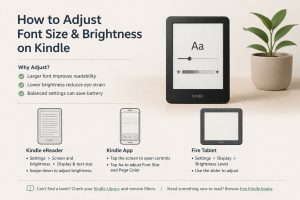
- Larger font can reduce eye fatigue and improve readability
- Lower brightness is more comfortable at night
- Balanced settings can improve battery life (especially on tablets)
How to Change Font Size on a Kindle eReader
Amazon’s official steps focus on device settings for supported models:
- Go to Settings
- Select Screen and brightness
- Select Display & text size
- Choose your preferred font size
Official Amazon guide: How to Change Font Size on Your Kindle E-Reader
How to Adjust Brightness on a Kindle eReader
- Swipe down from the top of the screen to open Quick Settings
- Use the brightness slider (or + and – controls, depending on model)
- Tap outside the menu to return to your book
How to Change Font Size and Brightness in the Kindle App
In an open book on iOS or Android:
- Tap the center/top area of the page to open reading controls
- Tap Aa (reading settings)
- Adjust Font Size from the Font tab
- Adjust Page Color or theme if needed for contrast
More reading options from Amazon: Accessible Reading Options for Kindle Reading Apps
How to Adjust Brightness on an Amazon Fire Tablet
- Open Settings on your Fire tablet
- Select Display
- Select Brightness Level
- Move the slider to adjust brightness
Official Amazon guide: Adjust the Screen Brightness of Your Fire Tablet
If a book is hard to find after you adjust settings, open your Kindle Library and remove filters like Downloaded or Collections to see everything.
Need something new to read with your new settings? Browse free Kindle books and test different fonts on a few titles.