Navigating quickly to a specific page or location on your Kindle book can be challenging. Here’s the simple and quick way to do it:
Navigating to a Specific Page on Kindle Devices
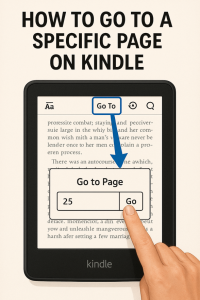
- Open Your Book: Make sure you have opened the book you want to navigate within.
- Reveal the Toolbar: Tap near the top of the screen to bring up the toolbar.
- Access the “Go To” Feature: Tap the “Go To” icon, which may look like three horizontal lines or be labeled as “Go To” next to the “Aa” font icon. Learn more here.
- Choose Navigation Option: Select Page or Location. (Note: Some Kindle books display “location” numbers instead of page numbers. If available, select “Page”).
- Enter the Number: Type the desired page number or location number.
- Confirm: Tap Go or Enter to jump to that page or location.
Navigating to a Specific Page on the Kindle Mobile App (iOS & Android)
- Open the Kindle App and Your Book: Launch the Kindle app on your device and open the book you want to read (learn more tips here).
- Show the Toolbar: Tap the center or top of the screen to display the toolbar.
- Access the “Go To” Feature: Tap the “Go To” icon (often found at the top or bottom of the screen; it may look like a list or a small arrow).
- Select “Page” or “Location”: Choose the option to enter a specific page or location number.
Note: Not all Kindle books support page numbers; you may need to use location numbers instead.
- Input the Number: Enter the page or location number you wish to visit.
- Confirm: Tap Go to jump directly to the entered page or location.
Important Notes & Tips
- Page Numbers vs. Locations: Many Kindle books use “location” numbers instead of page numbers because page numbers can vary by device and font size. Not all books support page navigation; if you do not see the page option, use the location number instead.
- Toolbar Icons: The “Go To” icon may appear as three horizontal lines or a labeled button, depending on your device and app version.
- Quick Scrolling: On some devices and app versions, you can also use a slider at the bottom of the screen for fast navigation.
Knowing how to navigate directly to a specific page or location on your Kindle significantly enhances your reading experience, saving you time and adding convenience whether you’re reading casually or researching meticulously.
Your next read is waiting for you! Check out this list of free Kindle books.