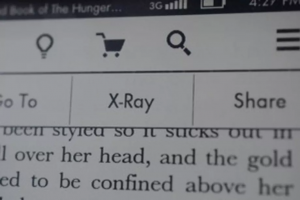
Back in 2011, Amazon introduced the interactive X-Ray feature to allow readers to interact and explore their eBooks like never before. The feature is available on Kindle devices and the free Kindle reading app, but not many people know what X-Ray does or how it can improve their reading experiences. If you want to be truly immersed in your next novel, keep reading to see how Kindle X-Ray can be a lifesaver for avid bookworms.
What is Kindle X-Ray?
Kindle X-Ray is an Amazon Kindle feature that works like an in-book reference or index for the book you are reading. When it’s available for a title, it builds a index of the book’s characters and other information so you can jump around without losing your place.
What it does:
- Shows a list of key “People,” “Terms,” and sometimes “Locations” in the book.
- Lets you tap a person or term to see a short description and a timeline-style list of where it appears (chapter/locations).
- Surfaces notable passages (“clips”) that mention that entity.
- Links out to related pages on Wikipedia, Goodreads, or the author page..
The Kindle X-Ray feature is referred to as a “content enhancement feature” that lets readers explore the contents of an eBook. With a single tap, you can select a name, place, or word to bring up a list of all the times your book mentions that specific person or topic. You can sort by “People” or “Terms” to view summaries of the main characters, descriptions of the scene, or an explanation of a word that’s frequently mentioned. For example, if you forget what a minor character looks like since the last time they were mentioned, just tap their name to review the passage where they were first introduced.
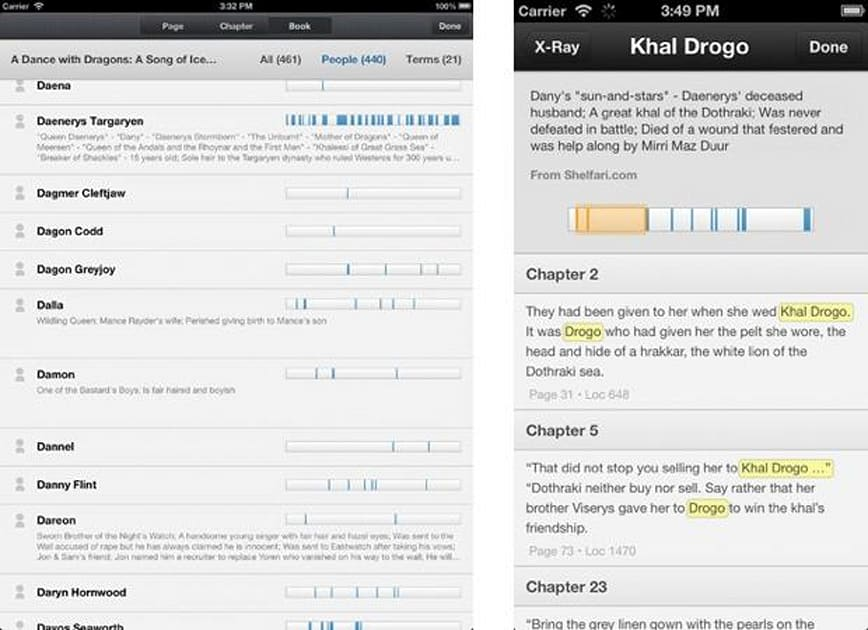
Kindle X-Ray is a built-in feature that helps you understand more about a book by showing key people, places, terms, and notable passages. Not every Kindle book supports X-Ray, but when it is available, it is one of the most useful reading tools on Kindle.
Why Use Kindle X-Ray?
You’d use Kindle X-Ray to get quick context and information without hunting through the book.
It’s most useful when:
- You forget who a character/person is, or what a term means.
- You want to jump back to earlier mentions fast.
- You’re reading dense fiction or nonfiction and need an “index” while reading.
- You’re rereading/studying and want to track themes/appearances.
Don’t use it if you’re spoiler-sensitive, especially for mystery novels.
How to Use Kindle X-Ray on a Kindle eReader
In a supported book:
- Open the Kindle book
- Tap near the top of the screen to open the reading toolbar
- Tap X-Ray
- Browse People, Terms, and Notable Clips (options vary by book)
- Tap an entry to jump to relevant mentions in the book
How to Use Kindle X-Ray on the Kindle Mobile App
On iPhone or Android, the steps are similar:
- Open the book in the Kindle app
- Tap near the top of the screen to open reading controls
- Select X-Ray (if available for that book)
- Tap People, Terms, or Clips to explore
How to Use Kindle X-Ray on an Amazon Fire Tablet
On Fire tablets, X-Ray is usually available from within the book’s reading toolbar:
- Open the book in the Kindle reading app on Fire
- Tap the top of the screen to bring up the toolbar
- Select X-Ray to view people, terms, and clips
If you do not see X-Ray, the book may not support it, or you may need to download the full book (not just a sample).
If the title is not showing on your device, check your Kindle Library and sync your device so your content is up to date.
Want your next read? Browse free Kindle books and look for books with rich features like X-Ray.