A well-organized Kindle makes reading more enjoyable. When your books are sorted the way you like, you spend less time searching and more time reading.
Why Organize Your Kindle Library?
Organizing your Kindle Library helps you:
- Find books faster when your collection grows
- Separate unread books from finished reads
- Group books by genre, author, or series
- Keep device storage under control by managing downloads
Even a few small changes can make your library easier to browse and maintain.
How to Access Your Kindle Library
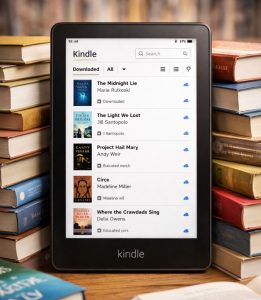
On most Kindle eReaders, tap Open your Kindle Library to see the books, samples, and other content connected to your Amazon account. From there, you can browse titles that are already downloaded to your device as well as items stored in the cloud.
If you are trying to find a specific book, check whether your Library is showing Downloaded only or All items. Downloaded shows only the titles currently stored on your Kindle, while All includes both downloaded books and titles available to re-download from your account. You can also use sorting, filters, and the search bar to narrow what appears in your Library.
Different Ways to Organize Your Kindle Library
Here are the most useful organization options you can use:
Sort and Filter
Sorting and filtering are the fastest ways to clean up your view without changing anything permanently. These tools help you surface the books you want based on how you prefer to browse.
- Sort by Recent, Title, Author, or Publication Date
- Filter by Books, Samples, Docs, Audible, and more (options vary by device)
- Use the search bar to find a title, author, or keyword quickly
- Create Kindle book collections
These options are especially helpful if you want to find something quickly without moving books into collections.
Create and Use Collections
Collections act like folders. You can create collections for genres, authors, or reading goals. This is one of the best ways to organize a larger Kindle Library in a way that matches how you actually read.
- From your Library, open the menu (three dots)
- Select Create New Collection
- Name the collection, then add titles to it
Once you set up a few useful collections, your Kindle Library becomes much easier to scan and manage.
Manage Cloud vs. Device Content
If your Kindle is getting full, keep your library in the cloud and download only what you are reading now. This lets you keep access to your books without crowding your device storage.
? To remove a download, press and hold a title (or open the menu) and select Remove Download
? To re-download later, open the All view in your Library and tap the title again
Managing what stays on your device can make your Kindle feel simpler, faster, and easier to use.
Want new reads without filling your device? Browse free Kindle books and download only the titles you plan to start soon.