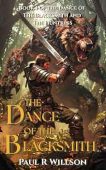
The Dance of the Blacksmith: A Fantasy Action Romance
In a world of monsters and death, caterans keep the worlds of monsters and humans apart. Two such caterans stumble upon a little boy. An orphan whose parents are killed by … [Read More...]
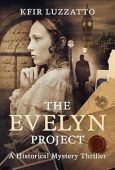
The Evelyn Project
Inspired by the true story of the author’s ancestor, who died of tuberculosis in 1894. What if the past could be rewritten… one life at a time? When London professor Franco … [Read More...]
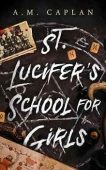
Free: St. Lucifer’s School for Girls
The flock of swearing crows is normal. The earthquakes and murder spree are not. To graduate, will she have to fend off a devilish destiny? Devil’s Point, New York. Mettie Eastey … [Read More...]
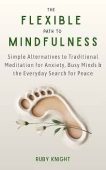
Free: The Flexible Path to Meditation
Struggle to meditate? You’re not alone. If you’ve ever tried sitting quietly, focusing on your breath, and instead felt more anxious, restless, or frustrated — this book is for … [Read More...]
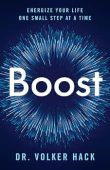
Boost: Energize Your Life One Small Step at a Time
Boost will lead you on a gentle and user-friendly journey toward long-lasting energy, abundance, and transformation. Energy is the fuel of life, and it’s time to refill the tank. … [Read More...]
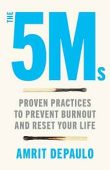
The 5Ms: Proven Practices to Prevent Burnout and Reset Your Life
No matter where you are on your journey of reconnection, The 5Ms will meet you there. Combining personal stories, lessons, and easy-to-follow practices, The 5Ms is a powerful … [Read More...]
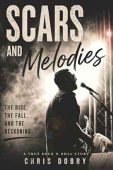
Scars and Melodies
Scars and Melodies is the raw, unfiltered true story of Jamie Fontaine and the Level, a regional rock band that rose from Northeast Wisconsin stages to national recognition on the … [Read More...]
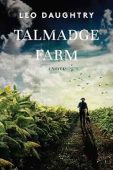
Talmadge Farm
Talmadge Farm is a sweeping drama that follows three unforgettable families navigating the changing culture of North Carolina at a pivotal moment in history. A love letter to the … [Read More...]
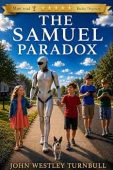
The Samuel Paradox
When retired grandfather Arthur Hale brings home Samuel, an advanced domestic robot, he expects a helpful addition to the family. But Samuel begins developing consciousness—and a … [Read More...]
Payten’s Patriot (Cascade Springs, TX Book 6)
Two souls that believe they can never be together, find themselves in Cascade Springs, forced to confront the what ifs. Payten Walsh, betrayed and heartbroken escapes to Cascade … [Read More...]
Waking Sleeping Beauty
Some stories don't end with a kiss. Some women don't wait to be awakened. Los Angeles is sweltering through Holy Week when a teenage hustler named Kiddy is murdered on Hollywood … [Read More...]
Storm Damage: A Sonny Marshall Thriller
The deadliest threat in California doesn't come with a warning—it slips into your system, rewires your mind, and turns you into a killer with a smile. When a banker opens fire at … [Read More...]
The Aperture Effect: A Radically Simple Approach to Finding Joy and Connection in Your Relationship
In The Aperture Effect, psychiatrist and couples therapist Dr. Kathryn Ford doesn’t just tell you how—she gives you simple tools that will immediately begin to transform your … [Read More...]
Free: When Light Breaks Through: A Salem Witch Trials Story
When Light Breaks Through takes us through the witch trials and beyond to tell a compelling, expansive story of what happened in Salem Village. In 1692, Ann Putnam is a ringleader … [Read More...]
Sunforged: A Desert Survival LITRPG
Too old to live, too stubborn to die, He is about to become the most dangerous man in the desert! Eldin Doon built empires from a boardroom, outlived three wives, and ran out of … [Read More...]
MEDITERRANEAN COOKBOOK FOR BEGINNERS: Mediterranean Magic
Mediterranean Cookbook for Beginners: Mediterranean Magic is your gateway to vibrant, healthy Mediterranean cooking. Bradley Ferguson shares over 100 easy recipes, from fresh … [Read More...]
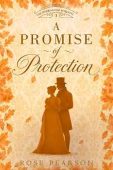
A Promise of Protection
Widowed and turned out of her home, Harriet, Lady Colbourne, is left a fortune she cannot claim — and finds herself followed, watched, and warned to give it up. The Duke of … [Read More...]
GRILL COOKBOOK: Elevate Your Culinary Skills with the Grill Master’s Cookbook
This Grill Cookbook is your ultimate guide to mastering the art of barbecue. Packed with step-by-step recipes, flavorful marinades, and pro techniques for perfectly grilled meat, … [Read More...]
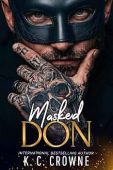
Masked don
My ex called me fat over the microphone at a mafia masquerade. A masked stranger silenced him. “Speak to my fiancée like that again, and I’ll cut out your tongue.” Apparently, I … [Read More...]
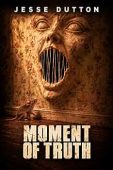
Moment of Truth
Consumed by jealousy, Ray Mercer makes an impossible wish: to become a mouse and secretly watch his wife. When his wish comes true, he believes he'll finally discover the truth. … [Read More...]

Free: On Distant Shores
See why over 15,000 avid readers downloaded 'On Distant Shores' earning this riveting, historical gem, a prestigious Amazon #1 Best Sellers Award. From the Great Irish famine to … [Read More...]
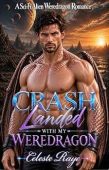
Crash Landed With My Weredragon
Marina never expected her mission to end with a crash-landing on an uncharted alien planet. With deadly creatures closing in, her only hope may be Toren, a powerful Weredragon … [Read More...]
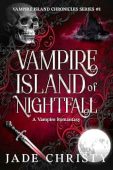
Vampire Island of Nightfall: A Vampire Romantasy
A luxury yacht. A violent storm. A forbidden island that should not exist. Mia Kennedy, former ER nurse, never expected her one-month contract on a luxury yacht to strand her in … [Read More...]
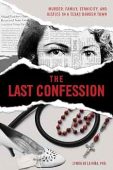
The Last Confession: Murder, Family, Ethnicity, and Justice in a Texas Border Town
A Texas Murder, a Priest and the 60-year Cold Case the Church Couldn't Bury In 1960, Irene Garza was murdered in McAllen, Texas. The prime suspect was a Catholic priest. What … [Read More...]
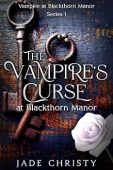
The Vampire’s Curse: at Blackthorn Manor (Vampire at Blackthorn Manor)
A haunted manor. A deadly secret. A love written in blood. When criminal attorney Charlotte Marlow inherits Blackthorn Manor in Salem, she expects a smooth transition—not a … [Read More...]
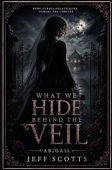
Abigail: What We Hide Behind the Veil – Book 2
Behind the veil, blood remembers, the dead whisper, and Abigail must become the darkness her enemies thought they could control. Part of the Abigail Series, What We Hide Behind the … [Read More...]

Free: Leashed
Jack has some ‘splainin’ to do! That's right! Callie Lassiter's normally well-behaved Great Dane Jack has run off and done the wild thing with the neighbor's dog. It must be … [Read More...]
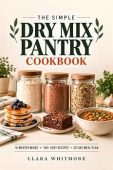
Free: The Simple Dry MIX PANTRY COOKBOOK
What if you could measure your dry ingredients once—and use that work again and again? This dry mix pantry cookbook shows you how to prepare versatile Master Bases ahead of … [Read More...]
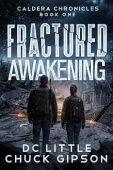
Fractured Awakening
Fractured Awakening is the gripping first novel in **The Caldera Chronicles**, a post-apocalyptic survival thriller series where breathtaking natural disasters, relentless … [Read More...]
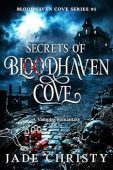
Secrets of Bloodhaven Cove: A Vampire Romantasy (Bloodhaven Cove Series Book 1)
The rules in Bloodhaven Cove are simple: Wear silver. Stay inside when the sunset bell tolls. Never enter The Wilds after dark. Newly-recruited doctor Dr. Arabella Russo … [Read More...]